How to mount CCD files?

CCD

About CCD:

CCD is a CloneCD disk image. It's a copy of a music or data CD created by CloneCD; often used for backing up CDs.


> WinMount supports mounting CCD file as a virtual disk, there are 4 ways:

The 1st method.

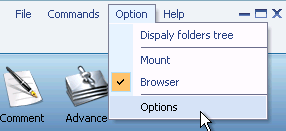
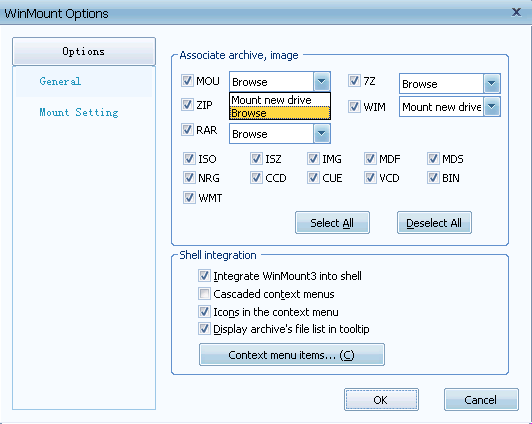
1) In the "Options", set CCD to be associated with WinMount.

Set CCD to be associated with WinMount

2) Double-click a CCD file in the Resource Manager, WinMount would assign a new virtual disk for the CCD file;

The 2nd method.

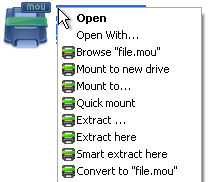
Right-click a CCD file, choose "WinMount3 -> Mount to new drive", WinMount would assign a new virtual disk for the CCD file;

right-click the CCD file and choose mount

. Mount to new drive : Mount the CCD file to a new virtual drive.
. Mount to...: Assign a disk letter for the CCD file. (Refer to "How to assign a disk?" on the bottom of this page.)

The 3rd method.

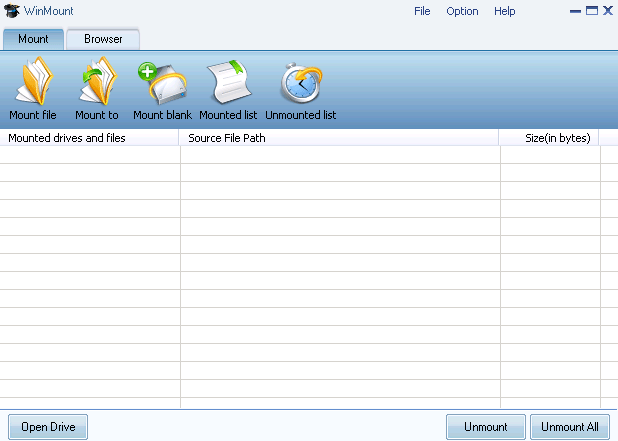
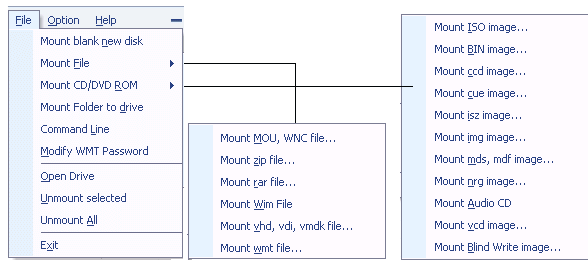
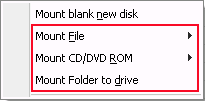
1) Click the button "Mount File" on the toolbar of WinMount main interface;

Mount toolbar

2) Select a CCD files, click "ok". WinMount would assign a new virtual disk for the CCD file;

The 4th method.

Drag a CCD file to WinMount main interface directly, WinMount would assign a new virtual disk for the CCD file;

How to assign a disk?

Of course, you can assign a disk for the CCD file, such as H: or K: or whatever you like.

1) Click the button "Mount to" on the toolbar of WinMount main interface( or right-click the CCD file and select "Mount to...").

step1: mount CCD to an assigned disk

2) Select a CCD file, select a drive, then WinMount would mount the CCD file to the assigned disk.

Step2: Select a disk and input a path for the CCD file

You can also input a path for the CCD file.
For example, select "H:\" and input "folder\folder1", then the CCD file would be mount to "H:\folder\folder1".

All supported formats

WinMount formats: MOU, WMT

Compressed formats: RAR, ZIP, 7Z

Image formats: ISO, ISZ, BIN/CUE, CCD, MDF/MDS, NRG, BWT, IMG, WIM

Audio formats: Flac, APE, WV

Virtual hard disk: VHD


Buy WinMount for personal use
Download WinMount


Home | Affiliate | Link to us | Links | Awards | Bug report


© Copyright 2008 WinMount International Inc. All Rights Reserved

Email:support@winmount.com