How to mount VHD files?

About VHD:
The Microsoft VHD file format specifies a virtual machine hard disk that can reside on a native host file system encapsulated within a single file. The format is used by Virtual PC 2004 and Virtual Server 2005, and the format will be used by a future version of Microsoft Windows Server that includes hypervisor-based virtualization technology. Beyond that, the VHD format is broadly applicable, because it is agnostic to the virtualization technology, host operating system, or guest operating system with which it is used.
Customers and partners who invest the VHD file format will have a clear path forward to future Windows virtualization technologies. In addition, Microsoft plans to design its systems management tools around the VHD file format for improved patching and manageability.
> WinMount supports mounting VHD file as a virtual disk, there are 4 ways:
The 1st method.
1) In the "Options", set VHD to be associated with WinMount.

2) Double-click a VHD file in the Resource Manager, WinMount would assign a new virtual disk for the VHD file;
The 2nd method.
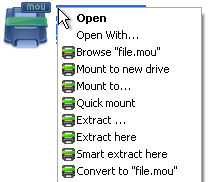
Right-click a VHD file, choose "WinMount3 -> Mount to new drive", WinMount would assign a new virtual disk for the VHD file;

. Mount to new drive : Mount the VHD file to a new virtual drive.
. Mount to...: Assign a disk letter for the VHD file. (Refer to "How to assign a disk?" on the bottom of this page.)
The 3rd method.
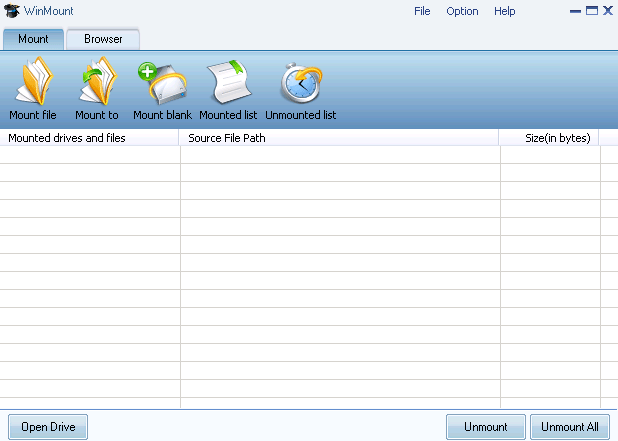
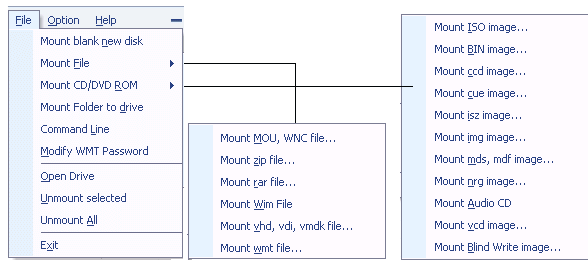
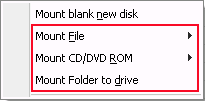
1) Click the button "Mount File" on the toolbar of WinMount main interface;

2) Select a VHD files, click "ok". WinMount would assign a new virtual disk for the VHD file;
The 4th method.
Drag a VHD file to WinMount main interface directly, WinMount would assign a new virtual disk for the VHD file;
How to assign a disk?
Of course, you can assign a disk for the VHD file, such as H: or K: or whatever you like.
1) Click the button "Mount to" on the toolbar of WinMount main interface( or right-click the VHD file and select "Mount to...").

2) Select a VHD file, select a drive, then WinMount would mount the VHD file to the assigned disk.

You can also input a path for the VHD file.
For example, select "H:\" and input "folder\folder1", then the VHD file would be mount to "H:\folder\folder1".


WinMount formats: