How to mount WV files?

WV

About WV:

WavPack compression (.WV files) can compress (and restore) 8, 16, 24 & 32-bit float audio files in the .WAV file format. It also supports surround sound streams and high frequency sampling rates. Like other lossless compression schemes the data reduction rate varies with the source, but it is generally between 30% and 70% for typical popular music and somewhat better than that for classical music and other sources with greater dynamic range.

WavPack also incorporates a "hybrid" mode which still provides the features of lossless compression, but creates two files: A relatively small, high-quality lossy file(.wv) that can be used by itself, and a "correction" file(.wvc) that (when combined with the lossy file) provides full lossless restoration. This allows the use of lossy and lossless codecs together. This "hybrid" feature is also offered by OptimFROG DualStream.

> WinMount supports mounting WV file as a virtual disk, there are 4 ways:

The 1st method.

1) In the "Options", set WV to be associated with WinMount.

Set WV to be associated with WinMount

2) Double-click a WV file in the Resource Manager, WinMount would assign a new virtual disk for the WV file;

The 2nd method.

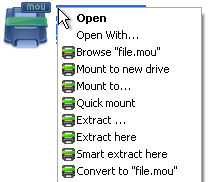
Right-click a WV file, choose "WinMount3 -> Mount to new drive", WinMount would assign a new virtual disk for the WV file;

right-click the WV file and choose mount

. Mount to new drive : Mount the WV file to a new virtual drive.
. Mount to...: Assign a disk letter for the WV file. (Refer to "How to assign a disk?" on the bottom of this page.)

The 3rd method.

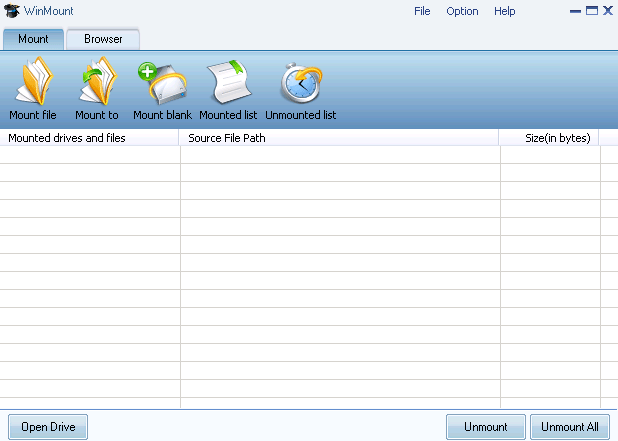
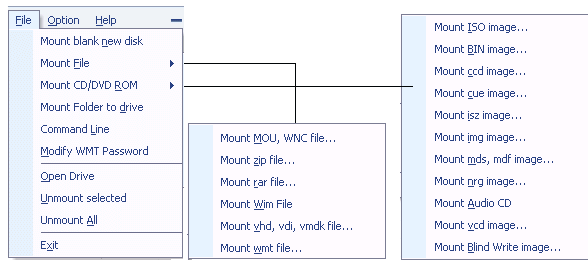
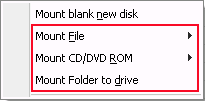
1) Click the button "Mount File" on the toolbar of WinMount main interface;

Mount toolbar

2) Select a WV files, click "ok". WinMount would assign a new virtual disk for the WV file;

The 4th method.

Drag a WV file to WinMount main interface directly, WinMount would assign a new virtual disk for the WV file;

How to assign a disk?

Of course, you can assign a disk for the WV file, such as H: or K: or whatever you like.

1) Click the button "Mount to" on the toolbar of WinMount main interface( or right-click the WV file and select "Mount to...").

step1: mount WV to an assigned disk

2) Select a WV file, select a drive, then WinMount would mount the WV file to the assigned disk.

Step2: Select a disk and input a path for the WV file

You can also input a path for the WV file.
For example, select "H:\" and input "folder\folder1", then the WV file would be mount to "H:\folder\folder1".

All supported formats

WinMount formats: MOU, WMT

Compressed formats: RAR, ZIP, 7Z

Image formats: ISO, ISZ, BIN/CUE, CCD, MDF/MDS, NRG, BWT, IMG, WIM

Audio formats: Flac, APE, WV

Virtual hard disk: VHD


Buy WinMount for personal use
Download WinMount


Home | Affiliate | Link to us | Links | Awards | Bug report


© Copyright 2008 WinMount International Inc. All Rights Reserved

Email:support@winmount.com