How to mount MOU files?

MOU

Copyright notice:

MOU is a WinMount proprietary format.

1. MOU is free of charge. That is, MOU can be used or published by personal, commercial and government;
2. Any applies to commercial activities must be authorized by WinMount International Inc.
3. At the appropriate time, MOU will open its compression and decompression part of interface or source code.

About MOU:

MOU is a highly and fast compressed format. MOU use the unique technology that owned by WinMount, it can be directly opened in a instant without decompressing.

MOU use the ramdom compression algorithm, this format is much diffrent from the traditional compress format. Traditional compress format must be completely extracted to use them, but MOU don't need to do that, it only extracts the part you want, save much time. MOU is a highly compressed format, its compress ratio is always above 40%. In the meanwhile, MOU is a fast format, it can be opened with WinMount in a instant, especially with large file, this advantage is much obvious.

WinMount supports mounting MOU files as a virtual disk, there are 4 ways:

The 1st method.

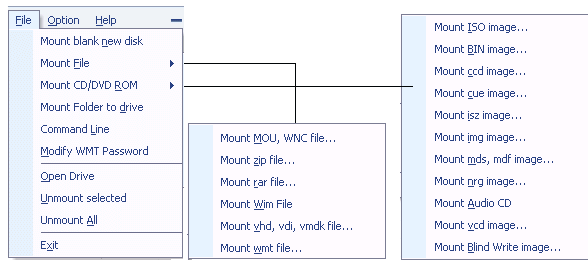
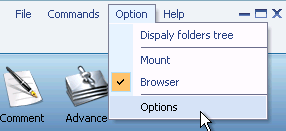
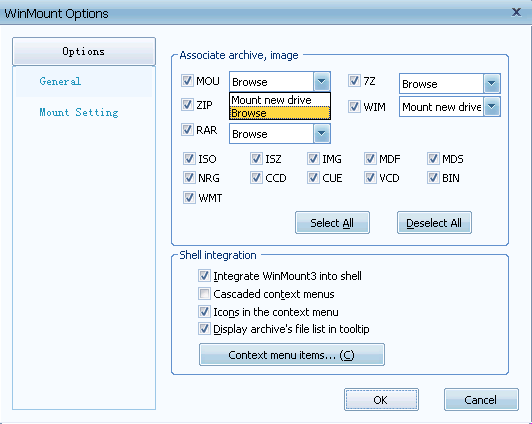
1) In the "Options", choose MOU to be associated with WinMount, and choose "mount" as open way.

Set MOU to be associated with WinMount

2) Double-click a MOU file in the Resource Manager, WinMount would assign a new virtual disk for the MOU file;

The 2nd method.

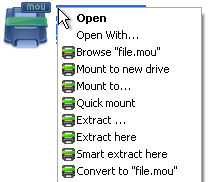
Right-click a MOU file, choose "WinMount3 -> Mount to new drive", WinMount would assign a new virtual disk for the MOU file;

right-click the MOU file and choose mount

. Mount to new drive: Mount the MOU file to a new virtual drive.
. Mount to...: Assign a disk letter for the MOU file. (Refer to "How to assign a disk?" on the bottom of this page.)

The 3rd method.

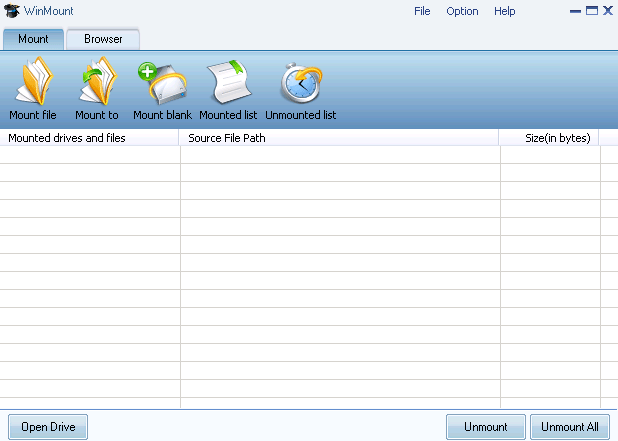
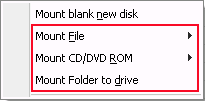
1) Click the button "Mount New" on the toolbar of WinMount main interface;

Mount toolbar

2) Select a MOU file, click "ok". WinMount would assign a new virtual disk for the MOU file;

The 4th method.

Drag a MOU file to WinMount main interface directly, WinMount would assign a new virtual disk for the MOU file;

How to assign a disk?

Of course, you can assign a disk for the MOU file, such as H: or K: or whatever you like.

1) Click the button "Mount to" on the toolbar of WinMount main interface( or right-click the MOU file and select "Mount to...");

step1: mount MOU to an assigned disk

2) Select a MOU files, select a drive, then WinMount would mount the MOU file to the assigned disk.

Step2: Select a disk and input a path for the MOU file

You can also input a path for the MOU file.
For example, select "H:\" and input "folder\folder1", then the MOU file would be mount to "H:\folder\folder1".

All supported formats

WinMount formats: MOU, WMT

Compressed formats: RAR, ZIP, 7Z

Image formats: ISO, ISZ, BIN/CUE, CCD, MDF/MDS, NRG, BWT, IMG, WIM

Audio formats: Flac, APE, WV

Virtual hard disk: VHD


Buy WinMount for personal use
Download WinMount


Buy WinMount for company use
Download WinMount
Home | Affiliate | Link to us | Links | Awards | Bug report


© Copyright 2008 WinMount International Inc. All Rights Reserved

Email:support@winmount.com