How to mount WIM files?

About WIM:
The Windows Imaging Format (WIM) is a file-based disk image format. It was developed by Microsoft to deploy its latest Windows operating system releases, Windows Vista and Windows Server 2008, which use it as part of their standard installation procedure. It works equally well with legacy versions of Windows however, and indeed is used as part of Windows Fundamentals for Legacy PCs.
> WinMount supports mounting WIM file as a virtual disk, there are 4 ways:
The 1st method.
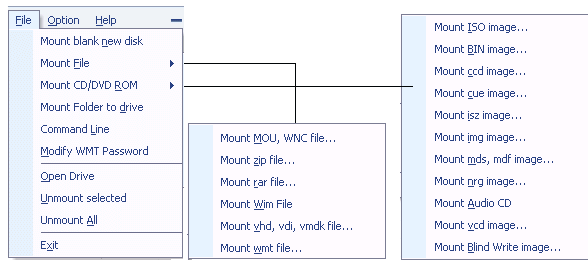
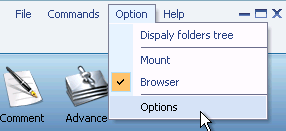
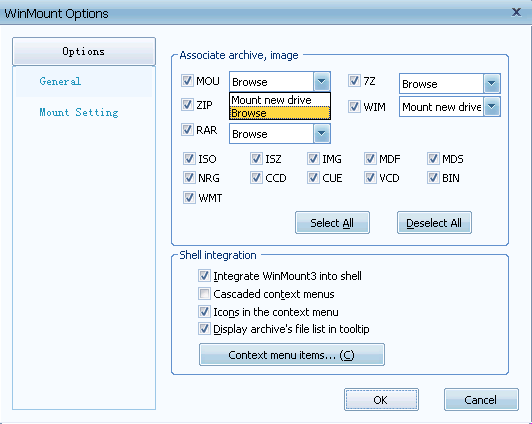
1) In the "Options", set WIM to be associated with WinMount, and choose "mount" as open way.


2) Double-click a WIM file in the Resource Manager, WinMount would assign a new virtual disk for the WIM file;
The 2nd method.
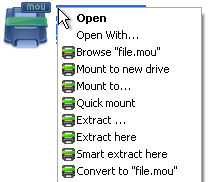
Right-click a WIM file, choose "WinMount3 -> Mount to new drive", WinMount would assign a new virtual disk for the WIM file;

. Mount to new drive : Mount the WIM file to a new virtual drive.
. Mount to...: Assign a disk letter for the WIM file. (Refer to "How to assign a disk?" on the bottom of this page.)
The 3rd method.
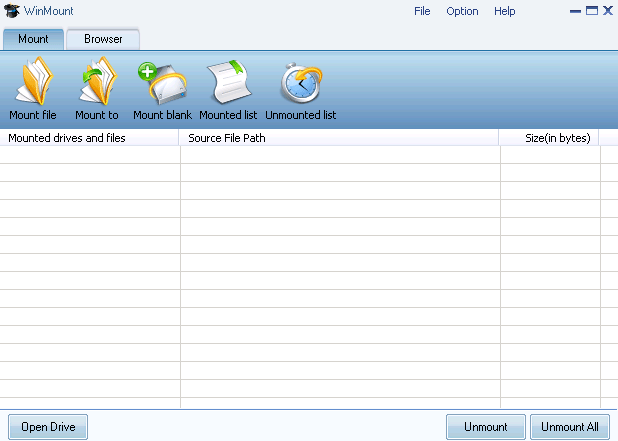
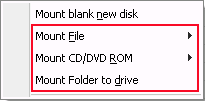
1) Click the button "Mount File" on the toolbar of WinMount main interface;

2) Select a WIM files, click "ok". WinMount would assign a new virtual disk for the WIM file;
The 4th method.
Drag a WIM file to WinMount main interface directly, WinMount would assign a new virtual disk for the WIM file;
How to assign a disk?
Of course, you can assign a disk for the WIM file, such as H: or K: or whatever you like.
1) Click the button "Mount to" on the toolbar of WinMount main interface( or right-click the WIM file and select "Mount to...").

2) Select a WIM file, select a drive, then WinMount would mount the WIM file to the assigned disk.

You can also input a path for the WIM file.
For example, select "H:\" and input "folder\folder1", then the WIM file would be mount to "H:\folder\folder1".


WinMount formats: